User Interface
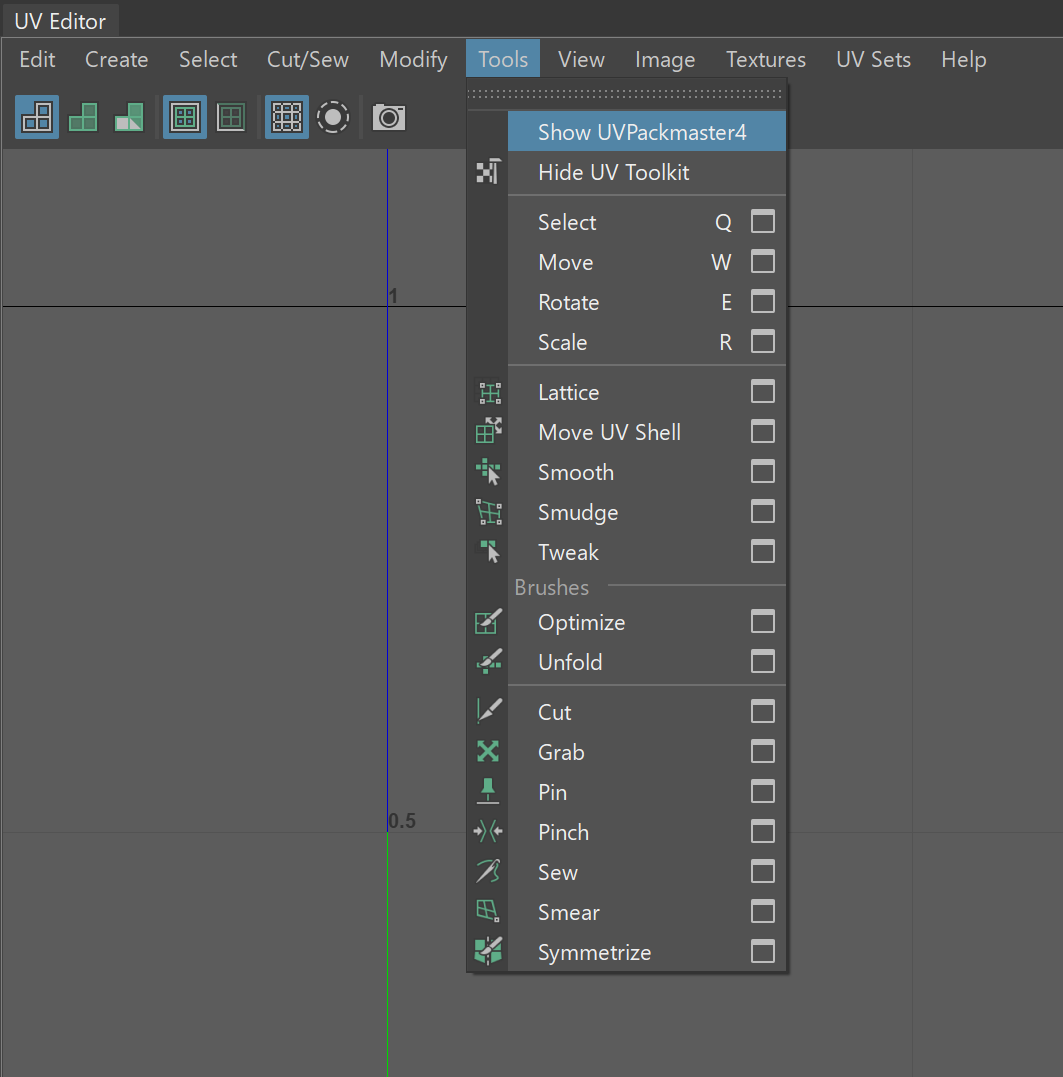
In order to open the UVPackmaster UI, go to the Tools menu in the UV editor and choose Show UVPackmaster4:
The UVPackmaster UI is split into a set of multi panels:
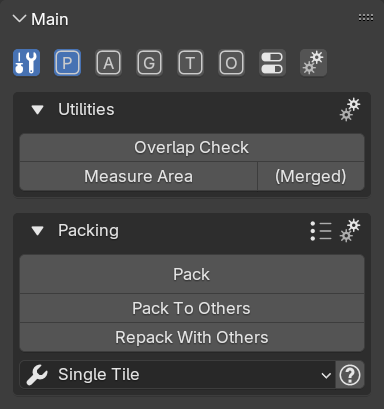
You choose which multi panels to show by using toggles on the top in the Main panel. Every toggle drives a single multi panel. You can press a toggle with Shift in order to enable more than one multi panel at a given moment. Contents of currently selected multi panels are displayed in the Main panel.
Multi panels
| Icon | Name | Description |
|---|---|---|

|
Utilities | Provides a set of useful tools which are always displayed on the very top of the tab, if the multi panel is enabled. |

|
Packing | Provides UV packing functionalities of UVPackmaster. |

|
Grouping (Packing) | Provides UV grouping configuration for packing operations. The multi panel is only displayed when a group-based packing mode is selected in the Packing multi panel |

|
Aligning | Provides UV aligning (stacking) functionalities of UVPackmaster. |

|
Grouping Editor | Provides tools exclusively dedicated to defining and tuning island grouping schemes. |

|
Texel Density | Provides texel density-based tools (also for packing operations). |

|
Other Tools | Miscellaneous tools which do not suit to any other category. |

|
Statistics | Shows the statistics of the last packing operation. |

|
Preferences | Displays the global properties of the UVPackmaster add-on and also miscellaneous scene options. |
Subpanels
Certain panels in the UI provide subpanels allowing the user to enable certain features. By default, all available subpanels of a given panel are always displayed and the user can enable a given subpanel using the checkbox in the given subpanel header. For example, that’s how the subpanels of the Advanced Packing Options panel look like:
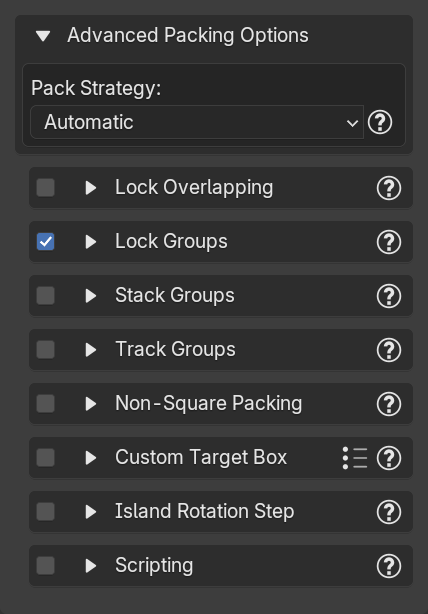
The method of displaying subpanels can be changed using the Subpanel Mode global option in the Preferences multi panel. When the option is changed from Standard to Enable Menu, the packer will not display all subpanel under a given panel anymore. Instead it will display a menu at the bottom of the given panel allowing the user to enable certain subpanels (features). Then only the currently enabled subpanels (features) will be displayed under the panel.
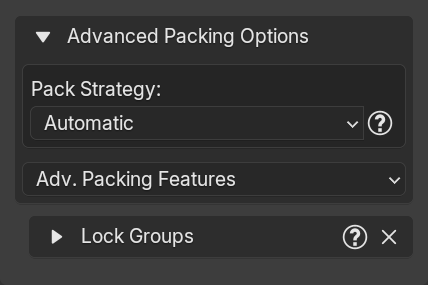
That’s how the Advanced Packing Options panel looks like after Subpanel Mode is set to Enable Menu:
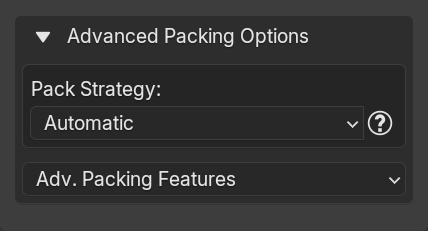
By expanding the menu, the user can select a subpanel to enable:
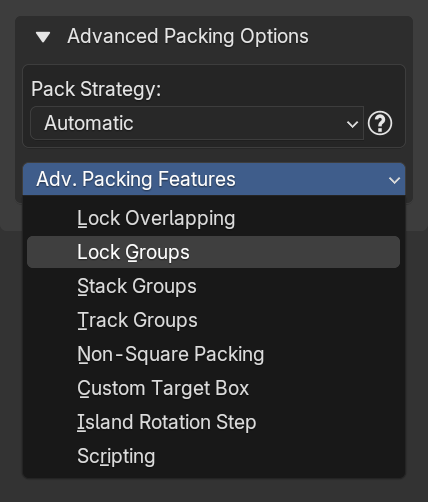
Only enabled subpanels are then displayed under a panel. The user can disable (close) a given subpanel by pressing the Cross button in the subpanel header: